
 Community
 Video Library
 Agent Training
 Freshservice
 Freshdesk
 Freshchat
 Freshcaller
 Freshsales
 Freshteam
 Freshworks Neo
 Freshsurvey
Log in to your Freshmarketer account
Select your profile name at the top right hand side corner and choose “Your Profile”
In Agency mode

In Independent mode

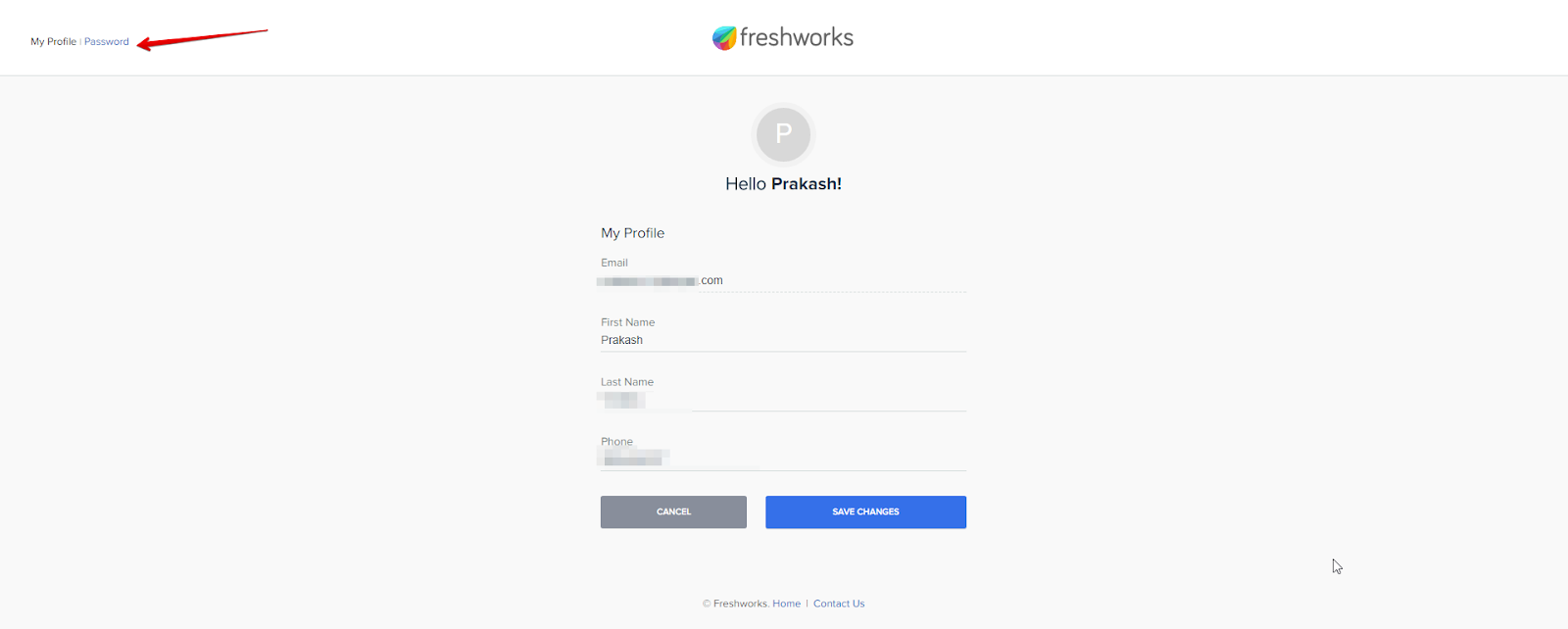
Once you select Profile name, you will be redirected to a new page. Where you can change your profile display name & phone number.
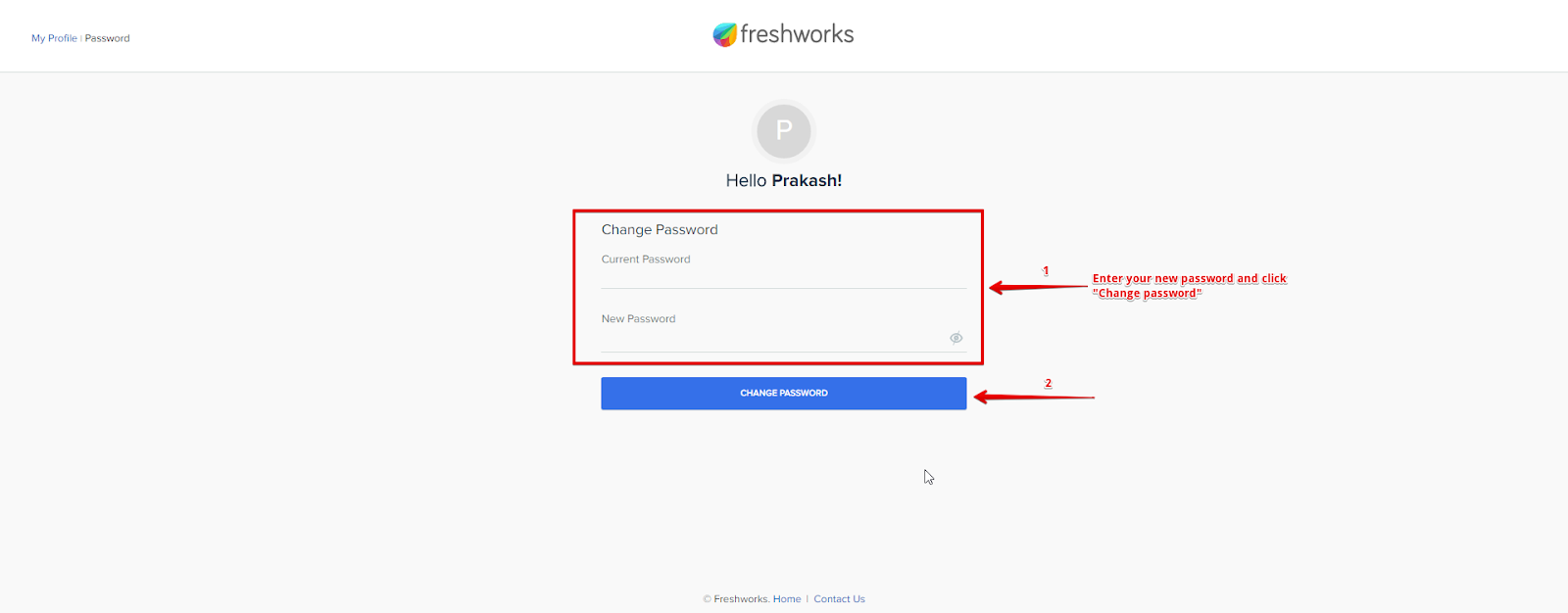
After saving your desired changes, choose “password” at the top left hand side corner, once you select “password” you will be redirected to another page where you will be having an option to enter your new password.
Now enter your new password and select “change password”
Technical Support
Don't see what you're looking for? Just drop us a mail